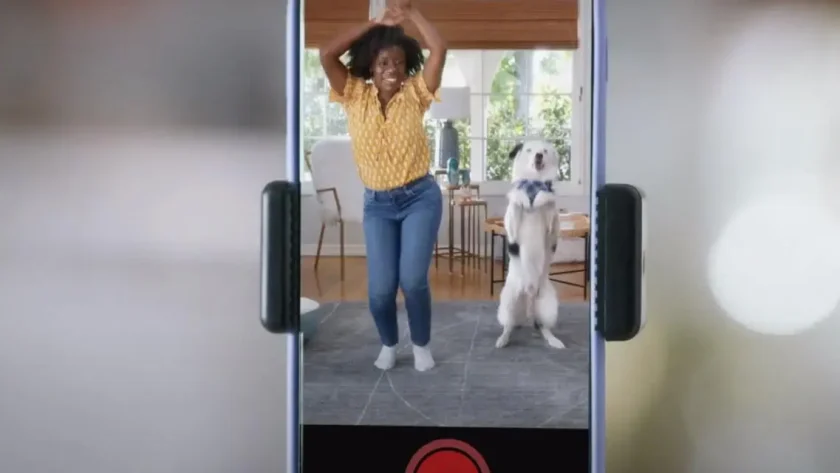
 Guest Author
A good dog photo can become a playful short video without pretending that the dog danced in real life. The useful question is not only whether the animation looks funny. It is whether you have chosen material you can use, checked what the tool produced, and given viewers enough context to understand what they are seeing. This workflow helps you make a clip that is enjoyable to share and fair to your pet, the people around you, and your audience.
If you’re planning to share your dog’s animated creation online, our guide on sharing pet photos safely offers a few useful precautions to keep in mind.
Start with a photo that gives the tool a clear subject
Choose a photo in which your dog’s face and body are easy to see. A standing or sitting pose with visible paws usually gives you more to inspect than a tight face crop. Strong light and a reasonably simple background can help you spot changes in the finished clip. This is a practical starting point, not a promise that any image will animate perfectly.
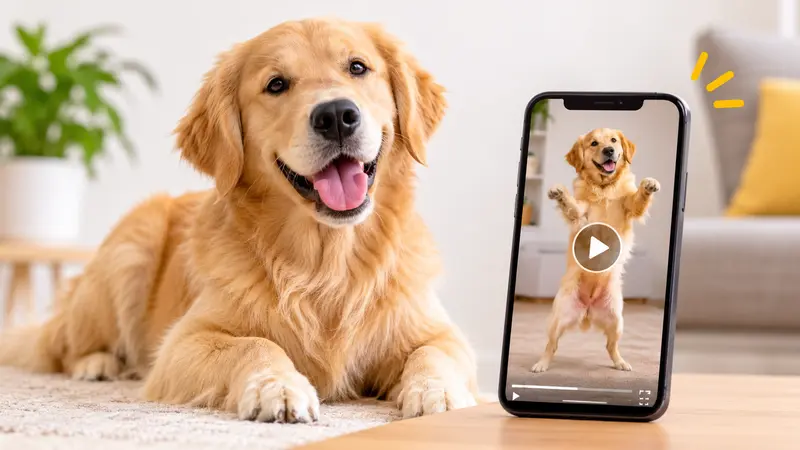
Before uploading, enlarge the photo and check its edges and background. A collar tag, parcel label, house number, or person reflected in a window may become part of the video you later share. If the image includes another person’s dog or a person who did not agree to be featured, ask first or choose a different photo. Keep the unedited original, then work from a copy so the source remains available if you want to compare the result or make another version.
Choose a dance reference you are comfortable using
Some photo-to-video workflows ask for a dance reference: a short clip that provides the motion or rhythm you want to evoke. Use material you recorded yourself, material you have permission to use, or a reference whose terms clearly allow your intended use. A clip being easy to download does not tell you whether you may reuse it. The same caution applies to music that might be audible in the reference or added to the finished video.
Think about the final audience before choosing the reference. A simple, clearly readable movement may work better for a lighthearted family post than a complicated routine with rapid turns and several dancers. You can also decide that a still photo with a caption is the better way to share the moment. The aim is a playful edited creation, not a test of what your dog can physically do.
Check the upload service before you spend credits
Read the service’s upload and privacy information before sending it a pet photo. Look for an explanation of who can see uploaded files, how long they are kept, how you can delete them, and how finished clips are delivered. If the photo includes a child, a home address, or other details you would not place on a public page, choose a less revealing image. A public sample gallery is not a substitute for information about how customer uploads are handled.
Check the price and output conditions before generating. Some tools use paid credits, and each attempt may have a cost. If the service does not offer a free generation or trial, treat the first paid result as something to review carefully, not as a guaranteed final post. Know where you will find the preview and download, and whether you can keep a local copy. These checks help you make a deliberate choice about both the image and the expense.
Review the whole clip, not just the first frame
Watch the finished video from beginning to end, with sound on. Then pause at a few points in the middle. Compare your dog’s face, coat pattern, ears, collar, and paws with the original photo. Generated movement can look convincing at a glance while changing a marking, adding an odd limb, or turning part of the background into something unexpected. If an artifact makes the dog look distressed or creates a confusing scene, do not share that version as if it were an ordinary video of your pet.
Listen for music, speech, or sound effects you did not intend to include. Check the final seconds as well: a sudden cut, stray frame, or unfinished movement is easier to miss in a looping preview. If you want to try another result, change one input at a time so you can see what helped. If the tool offers no satisfactory result, keeping the original photo is a perfectly good outcome.
Write a caption that tells the truth about the moment
Viewers should not have to guess whether the dog really performed the dance. A short caption such as “Animated from our photo of Milo” or “AI-made dance clip from a still image” makes the context clear without taking the fun away. Avoid captions that claim a real event happened if it did not. This matters especially when a clip could be passed on without your original explanation.
Consider where you post it. A private family chat, a public account, and a pet community may have different expectations. If the clip contains someone else’s face, pet, voice, or music, recheck whether your intended audience is covered by the permission you have. Review the post itself before publishing; a location tag or caption can reveal details that the image does not.
Finally, download the video and open the saved file outside the generator. Confirm that it plays all the way through and that the sound matches the version you approved. Keep the original photo and finished video in separate, clearly named files. That way the playful edit does not replace the real moment you wanted to remember.
About the Author
PawMambo Team works on PawMambo, a paid-credit tool for turning dog photos and dance references into short animated videos. The team shares practical guidance on reviewing generated pet media before posting it.